


High Quality Video Converter | 6 Practical Ways to Convert Video to High Quality
"How do I convert a video to high quality?" — Chris Frost
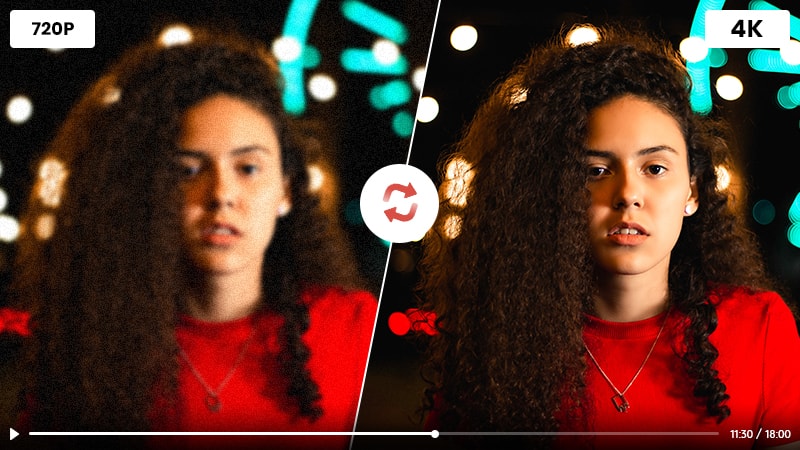
Video is everywhere today, such as shared moments, professional projects, and everyday streaming. When quality drops, details blur, colors dull, and motion can look rough. High-quality conversion helps you keep footage crisp, vibrant, and smooth. In this article, you'll get clear, practical guidance to convert video to high quality in four aspects/scenarios you may need.
- • Part 1: Why You Need to Convert Video to High Quality
- • Part 2: Convert Videos to MP4 without Quality Loss
- • Part 3: Convert Video to Smaller Size with High Quality
- • Part 4: Convert Low-res Videos to Higher Quality
- • Part 5: Convert YouTube Videos to High Quality
- • Part 6: FAQs about Converting Video to High Quality
Part 1: Why You Need to Convert Video to High Quality (Quick Overview)
Goal A: No Quality Loss After Converting Video to Another Format (Same Look)
When you convert a video, like MOV to MP4, MKV to MP4, WEBM to MP4,
or HEVC/H.265 to H.264, you're usually solving one core problem:
playback and compatibility. The goal is simple:
Goal B: Smaller File, Still Sharp (Balance between High Quality and File Size)
4K or 8K footage gets huge fast. It's hard to share, slow to upload, and impossible to email in most
cases. It also eats up your storage quickly. In that situation, you need a smarter conversion: reduce the file size while keeping the high quality:
Goal C: Improve Old/Low-quality Video (AI Enhancement/Upscaling)
Got old home videos, music clips, TV shows, or movies that look low-res, pixelated, and detail-starved? A
standard re-encode or remux rarely fixes that—it may only change the container. To truly improve the
quality, you need super-resolution and AI enhancement
techniques: denoise, deblur, sharpen, reduce artifacts, correct color, recover details, and more. That's
how you get footage that
Goal D: Convert YouTube Videos to High Quality (8K or 4K with 10-bit and HDR)
When people say
Part 2: Convert Videos to MP4 without Quality Loss
To help you reach Goal A: convert video to another format (MP4) with the same look and no quality loss, we've picked the best free video converters and shared the practical techniques that make it easy.
1. Any Video Converter
Any Video Converter is a trusted free video converter loved and invested by millions of users. Whether you want to convert videos from MOV, MKV, AVI, WEBM, VOB, and 1000+ formats to MP4, or re-encode HEVC/H265 to H264, or AV1 to H264, MPEG/VP9 to H264, it is your solid choice to get a reliable conversion that keeps your video the same look as the original.

| Any Video Converter | Key Features (Video Converter) |
| Availablity | Windows, macOS |
| Supported Input Formats | 1000+ video and audio formats |
| Supported Output Formats | MP4, MKV, AVI, MOV, WEBM, TRP, M2TS, MP3, AAC, etc |
| Video Codecs | HEVC/h2265, AVC/H264, AV1, VP9, MPEG |
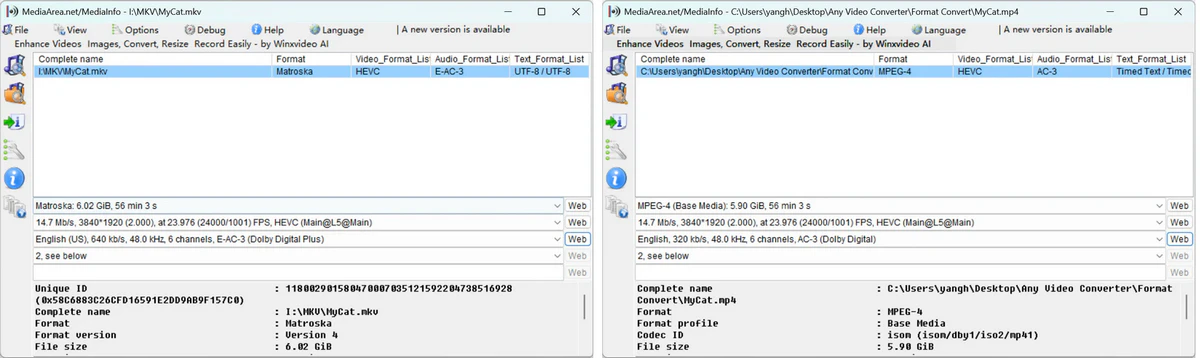
| Rewarp | No re-encoding, subtle difference in audio bitrate |
| Rewarp Speed | 2 mins 38 secs, *source: MKV, 3840X1920, HEVC, 6.02G, 56min |
| CRF & VBR | ✅ |
| Customized Options | Container, codec, bitrate, FPS, aspect ratio, sampling rate, channel |
| Customized Presets | ✅, Created by yourself |
| Batch Conversion | ✅ |
| GPU Acceleration | NVIDIA CUDA, AMD AMF, Intel QSV |
| Ultra-fast Mode | ✅ 130X |
| Video Length/Quantity Limit | No Limits |
| Basic Editing Tools | Trim/Merge/Crop/Track Editor |
| Safty Level | 100% 🛡️ |
| Best for | Beginners or pros |
How to Convert Video to High Quality MP4 for Free with Any Video Converter
Step 1: Add Videos
First, download and install Any Video Converter on your desktop or laptop by clicking the button below (choose Windows or Mac).
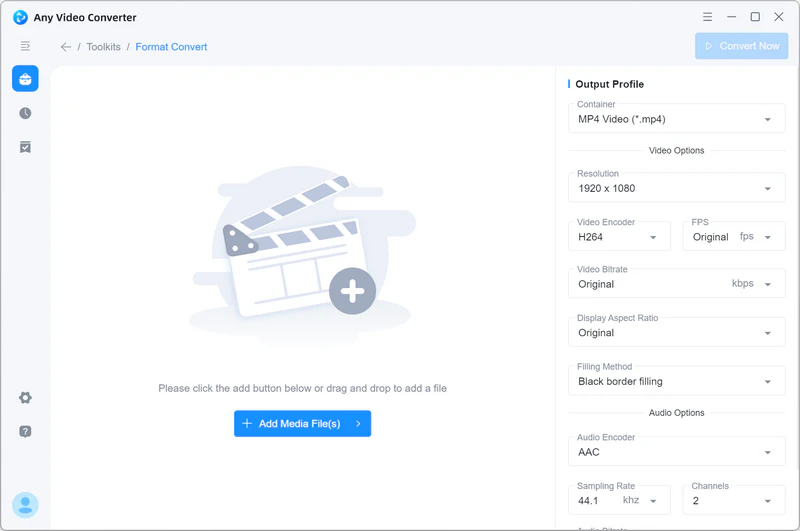
Next, launch Any Video Converter and open the 'Format Convert' tool.
Then, click the 'Add Media(s)' or  button to add your video files.
>Step 2: Customize Output Settings (Save as a Preset)
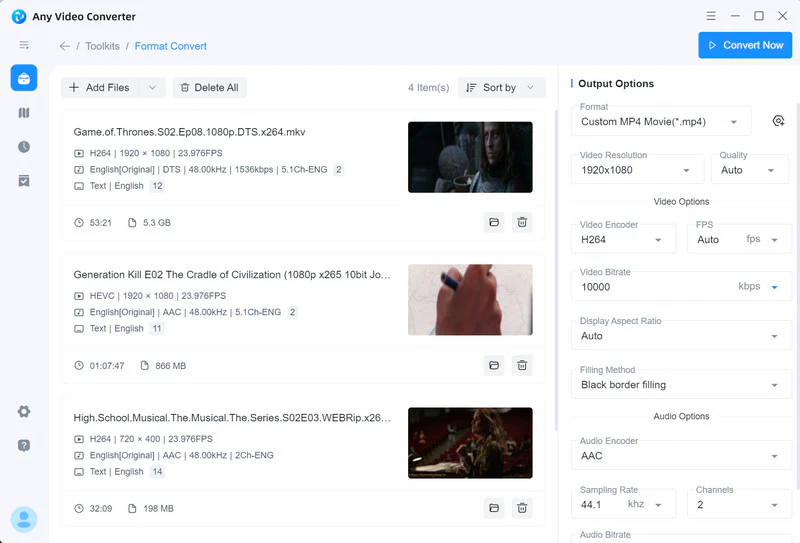
In Output Profile, adjust the settings you need, including format, codec, bitrate, FPS, aspect ratio, sample rate, audio bitrate, and audio channel.
*Tips: To convert videos to MP4 while keeping high quality, follow these best practices:
Lossless Video Remux:
If your source is H.264/AVC or H.265/HEVC with AC3 (5.1) audio, simply select MP4 as the output format and keep the other parameters the same as the source. This preserves the original look, as well as enables the ultra-fast conversion mode.
Minimal Lossy (Re-encode):
If your source uses other codecs (like MPEG) or less compatible ones (like VP9), use these settings for a high-quality MP4 export:
- Video Codec: H.265 (HEVC) or AV1
- Resolution: 100% (keep original)
- Bitrate/Quality: Use CRF (Constant Quality); Set Constant Quality to Lossless, and Quality to High
- FPS: Keep Original
- Audio Codec: AAC
Tips: Save your customized settings as a preset for faster conversions next time. You can also click Presets to create and manage more profiles.
Step 3: Convert Videos to High Quality MP4
Click the 'Convert Now' button to start converting your videos to lossless or high-quality MP4.
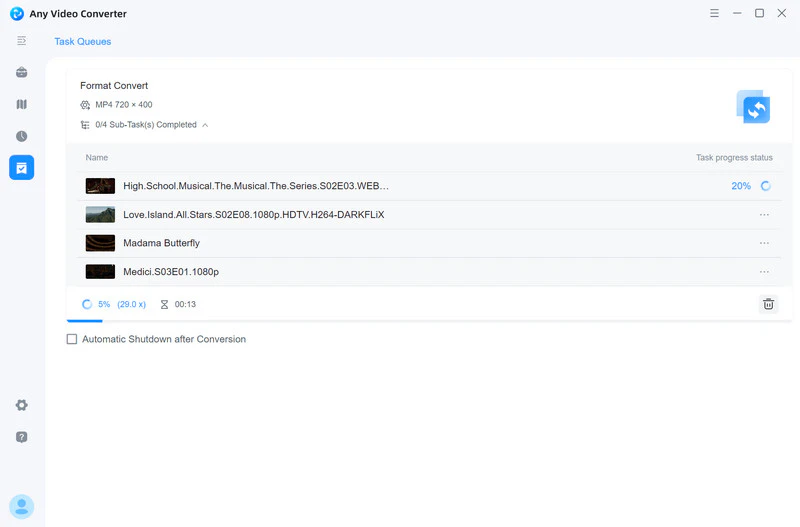
Any Video Converter will convert your videos faster by leveraging the GPU acceleration (if any). After conversion, you can go to the 'History' tab to view the converted files or open them into the trimming, merging, or other tools for further editing.
Metadata between before and after rewrap:
2. HandBrake
If you're a pro and need deeper, highly customized quality controls, HandBrake gives you more flexibility. Just note: it assumes you can fully understand the settings and know how they work. Without that parameter know-how, you will be puzzled and get inconsistent results. Or for a simpler workflow, stick with Any Video Converter.
| HandBrake | Key Features |
| Availablity | Windows, macOS, Linux |
| Supported Input Formats | 1000+ video and audio formats |
| Supported Output Formats | MP4, MKV, WEBM |
| Video Codecs | HEVC/H2265, AVC/H264, AV1, VP9, MPEG-4, MPEG-2, etc |
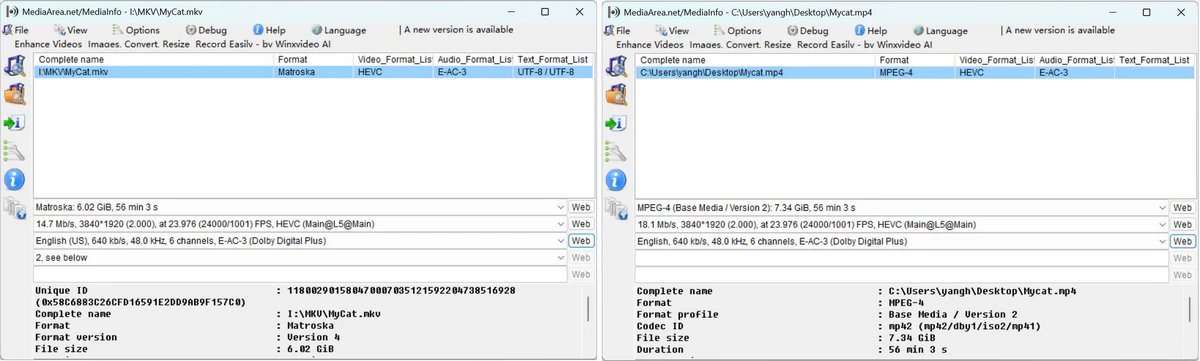
| Rewarp | No re-encoding, subtle difference in video bitrate |
| Rewarp Speed | 12 mins, *source: MKV, 3840X1920, HEVC, 6.02G, 56min |
| CRF & VBR | ✅ |
| Customized Options | Container, codec, bitrate, FPS, aspect ratio, sampling rate, channel, and more |
| Customized Presets | ✅, Pre-made |
| Batch Conversion | ✅ |
| GPU Acceleration | NVIDIA NVENC, AMD VCN, Intel QSV |
| Ultra-fast Mode | ❌ |
| Video Length/Quantity Limit | No Limits |
| Basic Editing Tools | ❌ |
| Safty Level | 100% 🛡️ |
| Best for | Pros |
How to Convert Video to High Quality MP4 for Free with HandBrake
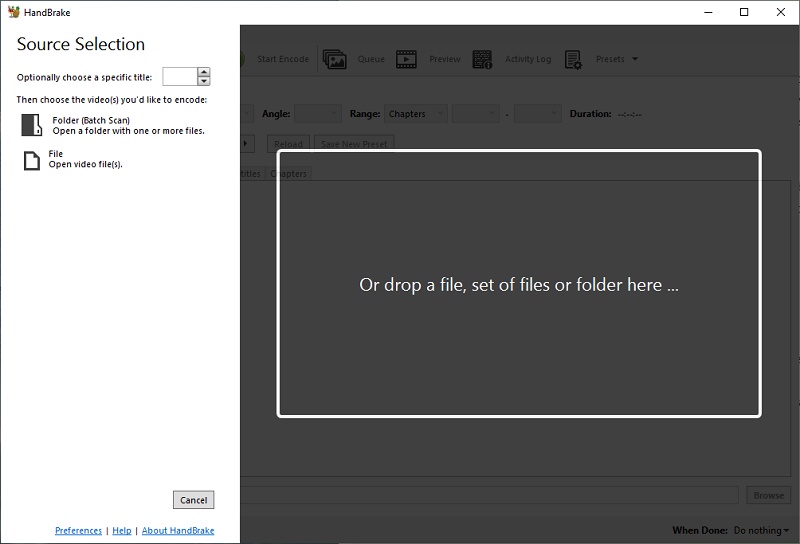
Step 1: Add Videos
Click the 'File' or 'Folder' to open video files.
Step 2: Select Preset or Customize
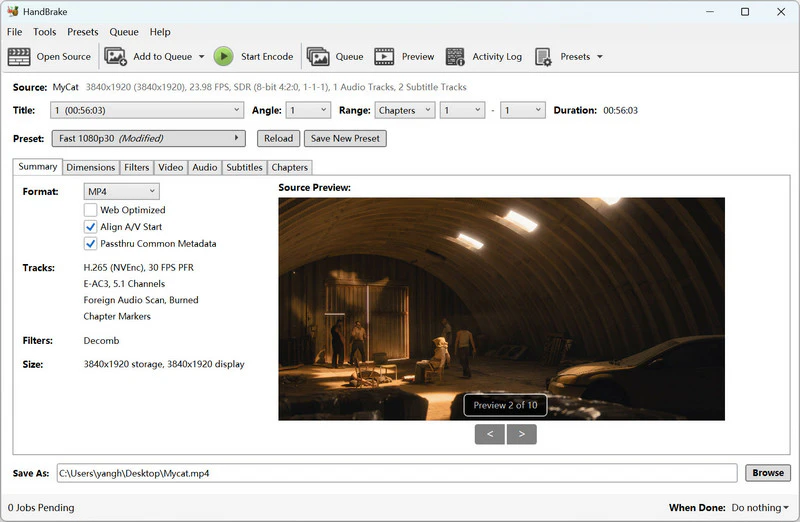
In the top-right menu bar, click 'Presets' and pick the option that fits your needs. For high-quality MP4 output, start with HQ or Super HQ.
If the built-in presets are not what you want, simply modify them based on your needs.
- Summary: Set Format to MP4
- Dimensions → Resolution & Scaling: Keep the same resolution as the source, or choose Custom to enter a width x height.
- Filters: Turn filters on/off as needed, and fine-tune only what your footage requires.
- Video: Choose Video Encoder as AV1, H.265, H264, or same as the source, set Quality to CRF, then set Constant Quality to 18~22.
- Audio Codec: AAC
Tips: If you have an NVIDIA RTX 40-series GPU, pick AV1 (NVEnc), H.265 (NVEnc), or H.264 (NVEnc), and choose 10-bit to preserve HDR. Otherwise, use AV1 (SVT), H.265 (SVT), or H.264 (SVT).
Step 3: Convert Video to High Quality MP4
Click the green Start Encode button to start converting videos to high-quality MP4.
Metadata between before and after rewrap:
3. Shutter Encoder
Shutter Encoder's Rewrap mode is smarter to convert video to high quality without re-encoding. It only transforms the container, while keeping the original video and audio streams intact by default. That means you get the same quality as fast as possible. This is especially handy for turning MKV or WebM files with H.264/H.265 video and AAC audio into MP4.
| Shutter Encoder | Key Features |
| Availablity | Windows, macOS, Ununtu, Linux |
| Supported Input Formats | 1000+ video and audio formats |
| Supported Output Formats | MP4, MKV, WEBM, MOV, MTS, MXF, AVI, MP3, etc |
| Video Codecs | HEVC/H265, AVC/H264, AV1, VP8, VP9, and almost all codecs |
| Rewarp | 100% copy |
| Rewarp Speed | 6 mins, *source: MKV, 3840X1920, HEVC, 6.02G, 56min |
| CRF & VBR | ✅ |
| Customized Options | Container, codec, bitrate, FPS, aspect ratio, sampling rate, channel, and more |
| Customized Presets | ❌ |
| Batch Conversion | ✅ |
| GPU Acceleration | NVIDIA NVENC, AMD VCN, Intel QSV |
| Ultra-fast Mode | ❌ |
| Video Length/Quantity Limit | No Limits |
| Basic Editing Tools | Trim/merge/extract |
| Safty Level | 100% 🛡️ |
| Best for | Pros |
How to Convert Video to High Quality MP4 for Free with Shutter Encoder
Step 1: Add Videos
Click Browse to select your MKV files, or simply drag and drop them into the blank area.
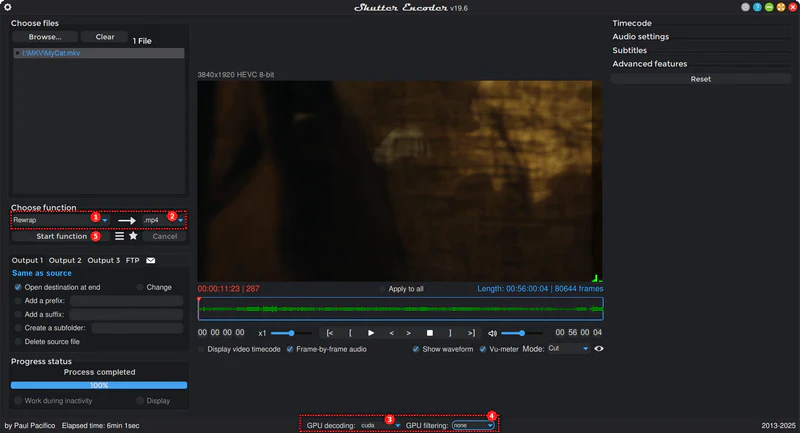
Step 2: Choose the Function
Open 'Choose function', select Rewrap, then choose MP4 as the output format.
Step 3: Convert Video to High Quality MP4
Before you start, enable GPU decoding and disable GPU filtering (bottom middle).
For GPU decoding, select CUDA (NVIDIA), QSV (Intel), or DXVA2 / D3D11VA / AMF (AMD).
Finally, click 'Start function' to convert MKV to MP4 without re-encoding.
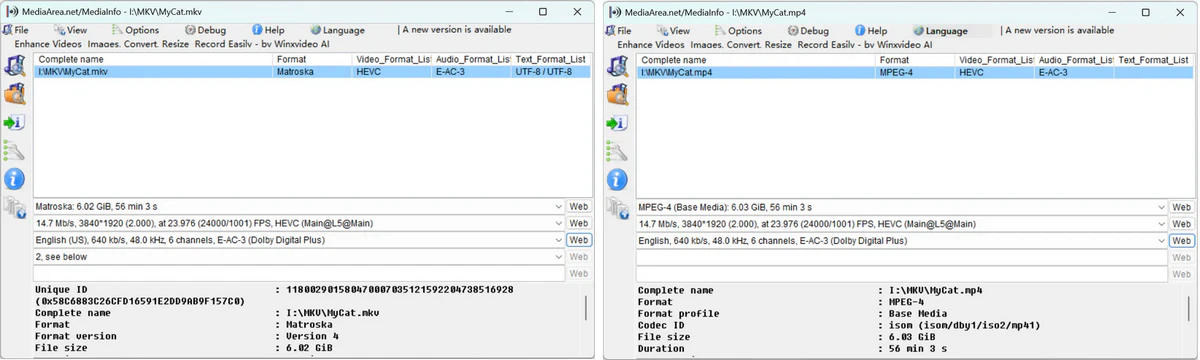
After the conversion, you'll see the video and audio streams remain unchanged: source and output match exactly.
Verdict:
| High Quality Video Converters | Easy to Use | Rewrap | Efficiency |
| Any Video Converter | ⭐️⭐️⭐️⭐️⭐️ | ⭐️⭐️⭐️⭐️ | ⭐️⭐️⭐️⭐️⭐️ |
| HandBrake | ⭐️⭐️⭐️⭐️ | ⭐️⭐️⭐️⭐️ | ⭐️⭐️⭐️ |
| Shutter Encoder | ⭐️⭐️⭐️⭐️ | ⭐️⭐️⭐️⭐️⭐️ | ⭐️⭐️⭐️⭐️ |
Any Video Converter is easier to use, with no steep learning curve, friendly for beginners. While HandBrake and Shutter Encoder has more advanced options, with a deep learning curve, best for pro-level customization.
HangBrake supports keep 10-bit, and this is in the waitlist of Any Video Converter.
Any Video Converter and HandBrake don't offer a 100% rewrap (i.e., a slight change in video or audio bitrate). Shutter Encoder does.
Any Video Converter is more efficient in converting videos to high quality MP4, especially when no re-encoding is required, as the ultra-fast mode (130x faster) is activated.
Part 3: Convert Video to Smaller Size with High Quality
Compressing a video is another form of conversion, just focused on reducing file size for the purposes of sharing, uploading, attaching to email, or saving storage. Below, we break down an all-in-one tool to shrink videos while keeping the high quality as possible.
4. Any Video Converter
Not every video needs a full re-encode to become smaller. Let's make it simpler: trim the unnecessary parts, downscale the resolution from 4K to 1080p, or remove extra audio tracks/subtitles. These steps can effectively reduce file size fast, often with little to no quality impact, in a single tool for free - Any Video Converter.
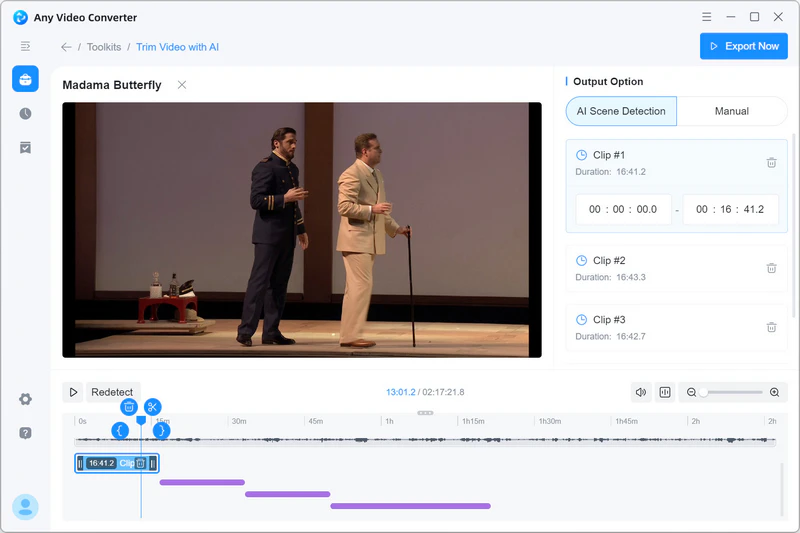
- Trim unwanted parts without re-encoding.
- Remove extra video/audio tracks or subtitles without re-encoding.
- Downscale 8K/4K to HD to reduce size dramatically, and minimal quality loss.
- Re-encode the old codec to advanced H264/H265 or AV1 to reduce size.
- Compress by percentage or target size when you need a specific file limit.
Let's use some examples to show how to convert video to both high quality and a smaller size.
Trim video to delete unwanted parts without re-encoding:
Remove unnecessary subtitles and audio tracks:

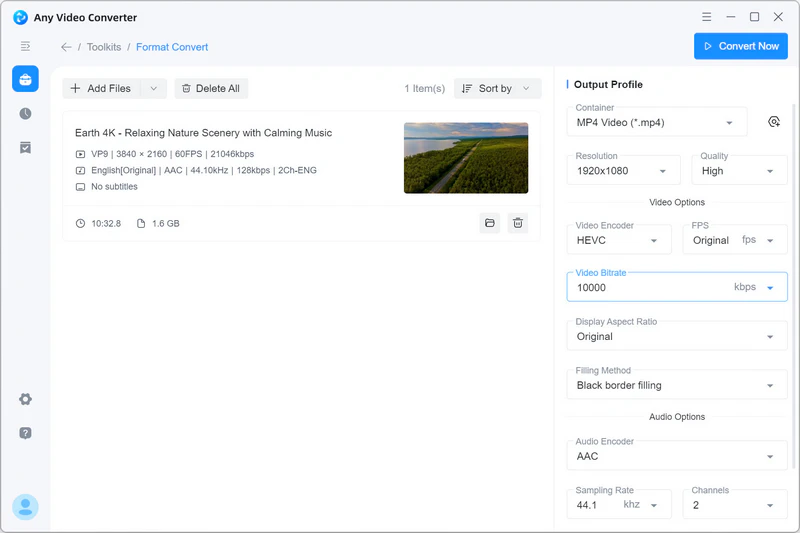
Convert 8K/4K to HD with high quality:
The key is to lower the bitrate to a level that matches 1080p

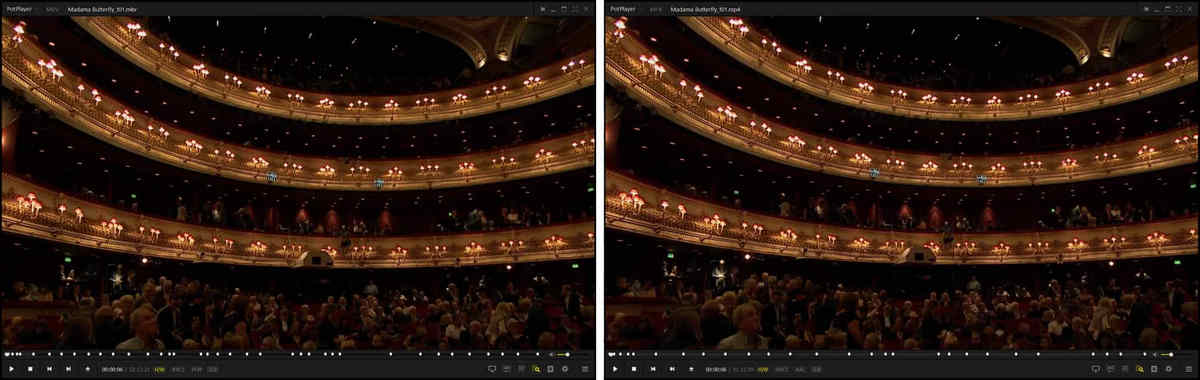
Convert video to a smaller size by percentage or target size:
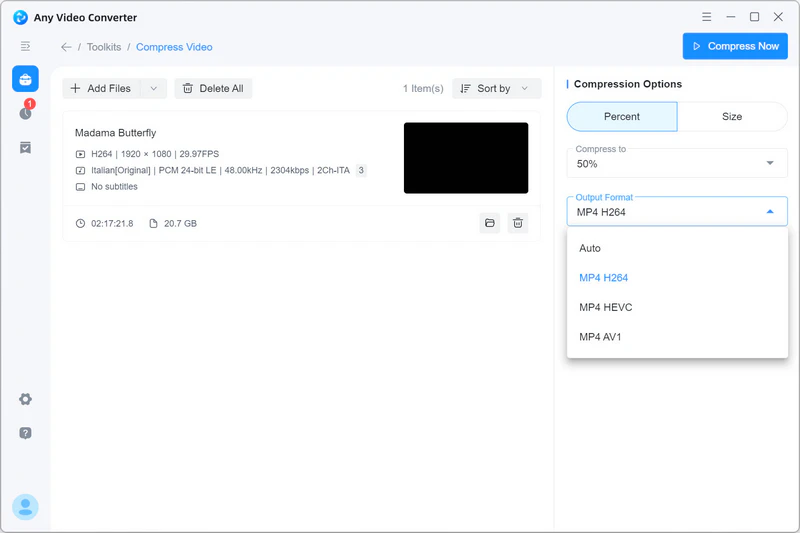
50% compression rate, the quality loss is virtually unnoticeable:
Part 4: Convert Low-res Videos to Higher Quality
Unlike converting video to other formats or to a smaller size with high quality, converting low-quality videos to higher quality is not that simple. The former is to keep the original quality as much as possible, and the latter is to recover what's already been lost. Traditional ways made no difference at all; only the techniques of super resolution and enhancement based on deep learning algorithms.
To convert low-quality videos to higher quality with less effort, we picked an AI video enhancer that's both powerful and easy to use.
5. AVCLabs Video Enhancer
For video restoration and resolution upscaling, AVCLabs Video Enhancer AI strikes that balance. It gives you a wide set of AI presets for upscaling and quality restoration, so you don't have to guess the right settings. It works especially well for low-FPS anime, older home videos with softened facial details, and heavily compressed clips with visible artifacts.
How to Convert Low-res Video to High Quality (HD, 4K, or 8K)
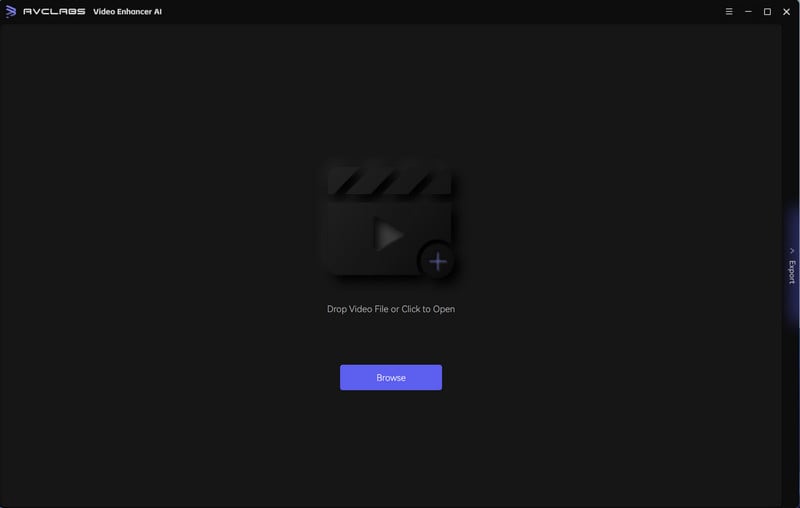
Step 1: Add Low-res Videos
Click the "+" button in the upper blank area to load your low-res videos into AVCLabs Video Enhancer AI.
Step 2: Choose a Preset
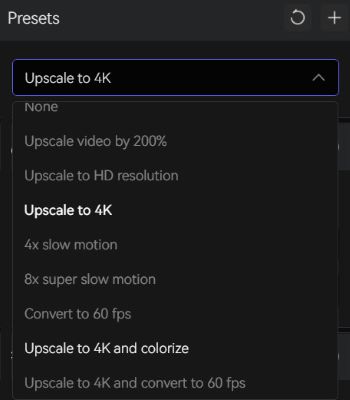
Under the Preset list, you can choose a preset that meets your requirements. If none, go to below to customize the configurations you prefer.
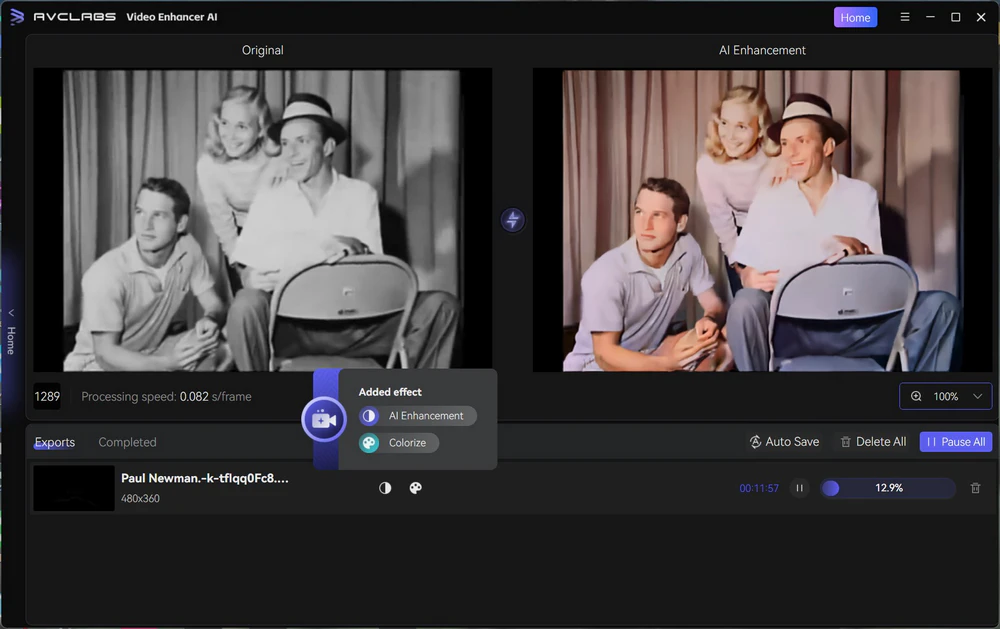
For this 360p black-and-white video, I selected 'Upscale to 4K and colorize' and enabled Face Enhancement.
Step 3: Preview and Render
To compare the before-and-after results, click Preview to view the first 1-10 seconds.
If the quality looks right, click Explore to start converting the low-res video to high quality.
Part 5: Convert YouTube Videos to High Quality
If you're converting YouTube videos from online to local and want more than just high quality, you're in the right place. Here, the focus is on preserving source details, such as HDR, 10-bit color, and more, without compromise.
6. Any Video Converter
Most online downloaders cap quality because of bandwidth limits and server load. Many desktop tools support 8K and 4K, but still drop source details like HDR or 10-bit color. Any Video Converter is built to cover the full checklist: it's free to download, supports high-resolution output, and helps you preserve the source details you want.
How to Convert YouTube Videos to High Quality (4K, 8K, HDR, 10 bit)
Step 1: Add URLs
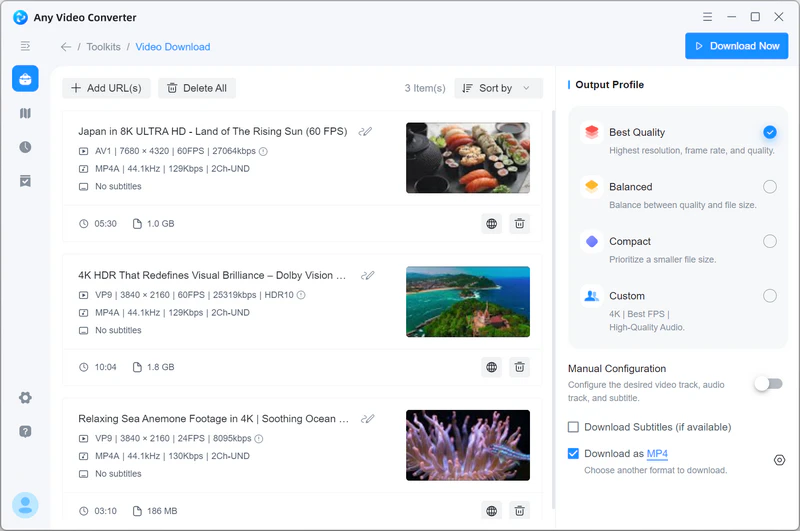
Open the Video Download tool in Any Video Converter, then copy the video links.
*Tips: Or click  to open the built-in web browser, in which you can search for any video you want
to convert and add it to the parsing list.
to open the built-in web browser, in which you can search for any video you want
to convert and add it to the parsing list.
Step 2: Choose the Best Quality
Select Best Quality from the quality options to download and convert the video at the same quality as the source.
Step 3: Start Downloading/Converting
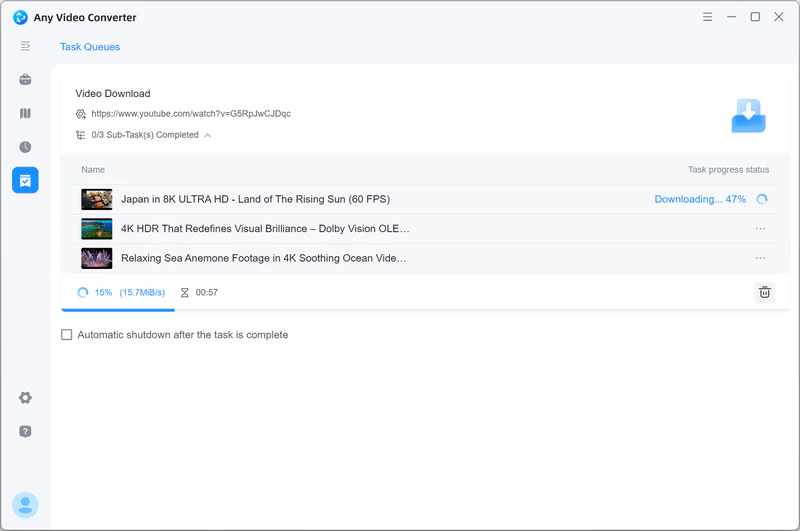
Click the "Download Now" button to start downloading and converting YouTube videos to high quality.
Part 6: FAQs about Converting Video to High Quality
Q: How can I convert a video to high quality?
A: There are several ways to convert a video to high quality. One option is a dedicated video converter, which lets you change the format while preserving the original quality. Another is a video enhancer, which can upgrade low-res videos to high quality using super-resolution technology.
Q: What is the optimal resolution for high-quality video?
A: The optimal resolution for high-quality video depends on the platform or device you intend to use for playback. Common high-definition resolutions include 720p (1280x720 pixels), 1080p (1920x1080 pixels), and 4K UHD (3840x2160 pixels). Higher resolutions generally offer better clarity and detail, but they may require more storage space and may not be compatible with all devices or platforms.
Q: How does bitrate affect video quality?
A: The bitrate of a video determines the amount of data used to represent each second of video playback. Higher bitrates generally result in better video quality but require more storage space. When converting a video to high quality, you can increase the bitrate to preserve more details and reduce compression artifacts. However, keep in mind that extremely high bitrates may not be necessary or supported by all playback devices.
In our test, converting a 4K video to 1080p without lowering the bitrate keeps the file size nearly the same. Once the bitrate is reduced, the file size drops dramatically, showing how bitrate directly affects storage requirements.
Q: Can I improve the quality of a low-resolution video by converting it to high quality?
A: Converting a low-resolution video to high quality cannot magically create additional details that were not present in the original footage. However, you can use video upscaling techniques to enhance the visual appearance and make the video more suitable for high-definition playback. These techniques employ algorithms to extrapolate and interpolate the existing pixels, resulting in a higher-resolution output. While the improvement may not be as good as native high-resolution content, it can still enhance the viewing experience to some extent.
Q: Will converting a video to high quality make the file size larger?
A: Yes, converting a video to high quality can increase the file size. Higher-quality videos tend to have more data due to increased resolution, bitrate, or less aggressive compression. If you're concerned about file size, you can choose to balance quality and size by adjusting the parameters during the conversion process. For example, you can use more efficient video codecs like H.265 (HEVC) instead of older codecs like H.264 to achieve better compression while maintaining high quality.
Q: Can I convert a video to high quality without losing any quality in the process?
A: Converting a video from one format to another generally involves some degree of quality loss, as each compression and re-encoding step introduces artifacts and reduces fidelity. However, you can rewrap the video without re-encoding, and keep the bitrate, FPS, and resolution the same as the source (like we did in part 2), thus you can convert a video to high quality as much as possible.
Q: What are some popular video converters or editing software that can convert videos to high quality?
A: There are numerous video converters and editing software available that can convert videos to high quality. Some popular options include Adobe Premiere Pro, Final Cut Pro, HandBrake, Any Video Converter, and FFmpeg. These tools provide various features and settings to optimize video quality during the conversion process.
Conclusion
Converting video to high quality starts with choosing the right approach for your goal. Whether you need to preserve the original look, reduce file size, restore old footage, or save YouTube videos in full quality, the right workflow makes all the difference.
Among the tools covered here, Any Video Converter is the one designed to fit every need. It helps you convert videos to other formats with the same look as the source, shrink file size with minimal quality loss, convert low-res videos to HD, 4K, or 8K quality, and save YouTube videos in high quality.


Charlie Campbell | Content Writer
Charlie Campbell is an experienced technical documentation writer with a background in software development and a passion for emerging AI technologies. Dedicated to helping readers stay ahead in the fast-paced digital landscape, he combines technical expertise with clear communication to simplify complex topics and keep audiences informed on the latest advancements.